How to build and submit your own ChatGPT plugin extension
On September 29, OpenAI let anyone put an app inside ChatGPT: in the sidebar, beside the conversation, or opening your files. Here’s the whole path from idea to a published listing, step by step, with the review checklist and the rules that get plugins rejected.
- people use ChatGPT weekly
- 1.2B
- kinds of extension
- 9
- test cases for review
- 5 + 3
The short version
- Pick one job people already do by hand every week, that ChatGPT can’t do on its own.
- Build it as an MCP server on a public HTTPS URL. That’s the engine.
- Add an extension so it gets a spot in the sidebar or opens beside the chat.
- Package it as a folder with a
plugin.json, then zip it. - Verify yourself in your OpenAI organization settings.
- Upload the ZIP, fix what the checks flag, add 5 good and 3 bad test cases plus a video, and submit.
- Once it’s approved, you pick when it goes live.
Why now
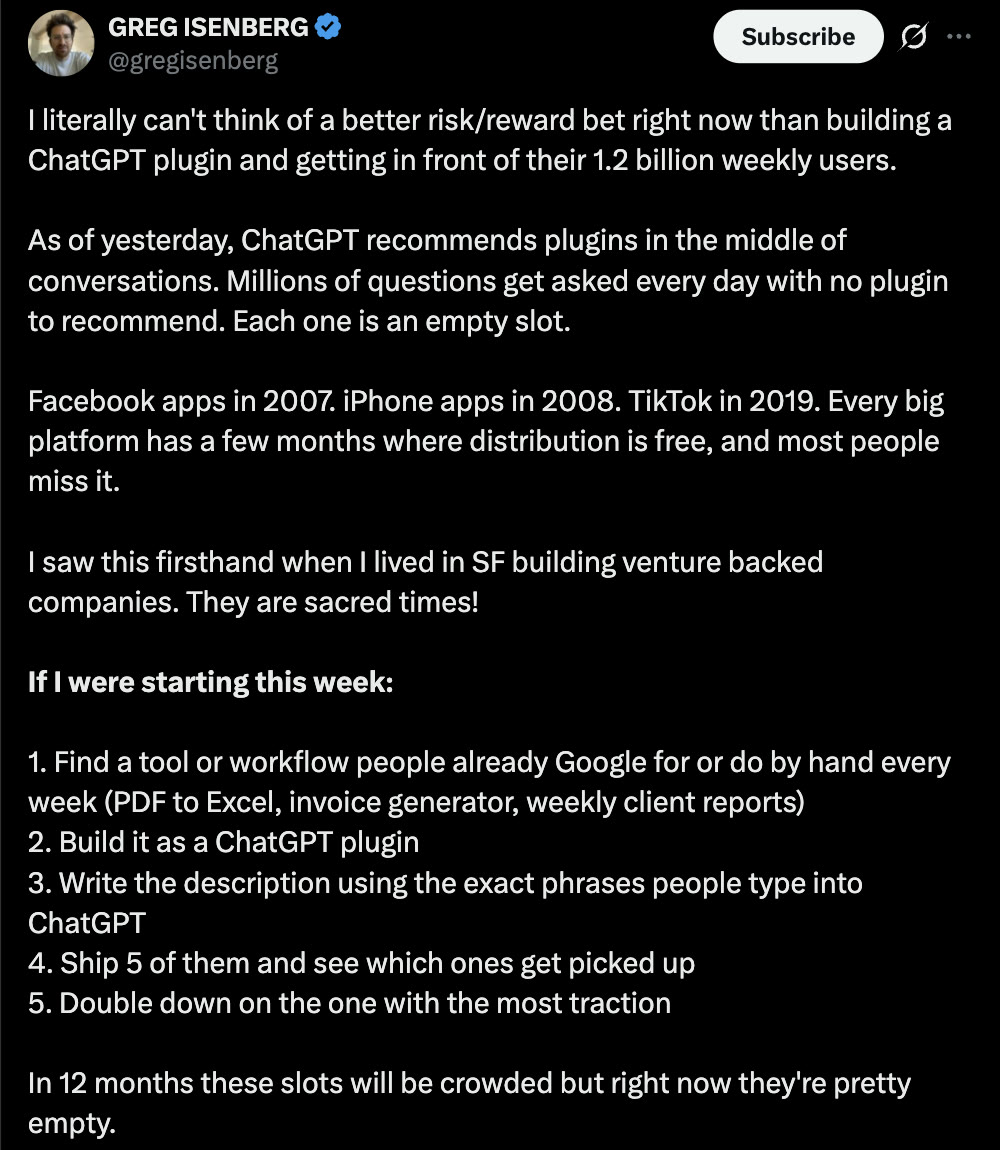
ChatGPT now has its own app store, and it’s almost empty. OpenAI says over 1.2 billion people use ChatGPT every week, and it has started suggesting plugins in the middle of conversations. Most of the questions people ask still have no plugin to suggest.
Greg Isenberg made the case better than I can, comparing it to Facebook apps in 2007 and iPhone apps in 2008:
Pick one job people already do by hand
The best first plugin does one boring thing well. Think of what people search for or do manually every week: turning a PDF table into a spreadsheet, making an invoice, writing the same client report every Friday.
- It has to do something ChatGPT can’t already do. OpenAI’s guidelines reject plugins that duplicate built-in features.
- No demos or trials. The plugin has to be complete and work reliably.
- Don’t wrap someone else’s API without their permission. An unofficial connector to another company’s service won’t be approved.
Build the engine: an MCP server
A plugin is an MCP server (the tools ChatGPT can call), skills (written instructions), or both. For anything with an extension, you need the server. It has to run at a public HTTPS URL, not on your laptop.
To get a feel for it before writing any code, connect OpenAI’s sample server:
- In ChatGPT, go to Settings → Security and login and turn on Developer mode.
- Go to ChatGPT Plugins, hit +, and paste
https://tinymcp.dev/api/moldy-aloof-zettabyte/mcp. - Install it from your personal plugins, switch the homepage tab from Chat to Work, type @, pick it, and ask it to roll a 20-sided die.
Then swap in your own server. Keep it to a few tools, name each one as a plain verb (get_order_status, not best_tool), and describe exactly what it does.
Add the extension
This is the new part. Extensions are what turn a plugin from a tool ChatGPT calls into an app people see. You declare one with a few lines in OpenAI’s SDK (@openai/mcp-extensions for TypeScript, or the MCP Python SDK). The ones most people will want:
- Sidebar app. Your app gets its own entry in ChatGPT’s sidebar and opens fullscreen. Canva does this.
- Conversation panel. Your app opens beside the chat, so the work and the conversation sit together.
- File viewer or editor. When someone opens a file type you support, it opens in your app. Adobe uses this to edit Photoshop and Acrobat files inside ChatGPT.
- Composer mentions. People can @ your content right in the prompt box. Figma does this. Desktop app only for now.
import type { OpenAIUiToolMetadata } from "@openai/mcp-extensions/server";

// Pass this as _meta when you register your MCP App tool.
// "global" puts your app in ChatGPT's left sidebar, opened fullscreen.
// Use { type: "thread" } instead to open beside a conversation.
const toolMetadata = {
  ui: { resourceUri: "ui://my-app/main" },
  "openai/ui": {
    entrypoints: [{ type: "global" }],
  } satisfies OpenAIUiToolMetadata,
};
To see every extension working at once, install OpenAI’s sample plugin, Bits & Bolts, from the extensions page. The full spec and SDK examples are in the GitHub repo linked from there.
Package it into a folder, then a ZIP
The plugin people install is a folder. At the root, a plugin.json says who you are and what the listing looks like, and an mcp.json says where your server lives.
pdf-to-sheet/
├── plugin.json        ← who you are + the listing
├── mcp.json           ← where your server lives
├── skills/            ← optional instructions
│   └── get-started/SKILL.md
└── assets/
    ├── logo.png       ← square, 48px or bigger
└── icon.png{
"$schema": "https://agent-plugins.org/schemas/1.0.0/plugin.schema.json",
"name": "pdf-to-sheet",
"version": "1.0.0",
"description": "Turn tables in a PDF into a clean spreadsheet.",
"author": { "name": "Your Name", "email": "you@yourdomain.com" },
"extensions": {
"com.openai": {
"interface": {
"displayName": "PDF to Sheet",
"shortDescription": "Turn PDF tables into sheets",
"longDescription": "Upload a PDF with tables. PDF to Sheet finds each table and returns it as a spreadsheet you can open or download. It works on text-based PDFs; scanned images may come back incomplete.",
"developerName": "Your Name",
"category": "Productivity",
"capabilities": ["Extract tables", "Export spreadsheets"],
"websiteURL": "https://yourdomain.com",
"supportURL": "https://yourdomain.com/support",
"privacyPolicyURL": "https://yourdomain.com/privacy",
"termsOfServiceURL": "https://yourdomain.com/terms",
"defaultPrompt": [
"Turn the table in this PDF into a spreadsheet.",
"Pull every table out of this bank statement."
],
"logo": "./assets/logo.png",
"composerIcon": "./assets/icon.png"
}
}
}
}{
"$schema": "https://agent-plugins.org/schemas/1.0.0/mcp.schema.json",
"mcpServers": {
"pdf": { "type": "streamable-http", "url": "https://yourdomain.com/mcp" }
}
}Shortcut: in ChatGPT’s Work mode or in Codex, the built-in @plugin-creator skill scaffolds the folder for you. It uses an older layout (.codex-plugin/plugin.json), which OpenAI still accepts.
Get verified and get your four pages up
- Verify yourself. In your OpenAI organization settings, complete individual or business verification. The directory shows the name you verify under. Only organization owners can submit, unless an owner gives you the Apps Management Write role.
- Four public HTTPS pages: a website, a support page, a privacy policy and terms of service. All four are required for a plugin with a server.
- The privacy policy has to be specific: what you collect, why, who gets it, how long you keep it, and what users can control.
Upload the ZIP and clear the automated checks
- Open Plugins in the OpenAI dashboard and choose Upload new or existing plugin. Pick your verified identity, then upload the ZIP.
- Under Metadata & Skills, wait for the checks and read any issues. Fix them in your folder and upload a new ZIP.
- Under MCPs, connect your server and pass domain verification: serve the exact token the dashboard shows, as plain text, at
https://yourdomain.com/.well-known/openai-apps-challenge. Just the token, not JSON. - Wait for the tool scan and fix anything it flags.
Submit for review
The review team actually tests your plugin, so give them everything they need. You can put most of this inside plugin.json under extensions.com.openai.review so it imports with the ZIP:
- Exactly 5 positive test cases: the scenario, the prompt, which tools should run, and what should come back. Run every one yourself first.
- Exactly 3 negative test cases: prompts your plugin should refuse or not act on, and what it should do instead.
- A video walkthrough of those cases, at a link reviewers can open.
- A test account if your app needs sign-in, with sample data and no 2FA, email codes or magic links. These go in the dashboard, never in the ZIP.
- Release notes for the version you’re submitting.
Then choose Submit for review and agree to the policy attestations. Feedback arrives by email. If you’re rejected and disagree, reply to that email to appeal.
Publish, then keep improving it
Once it’s approved, nothing goes live until you open the approved version and hit Publish plugin. It then shows up in the one directory ChatGPT and Codex share.
- Server changes ship on their own. OpenAI rescans your server daily, and changes that pass the checks go live without a new ZIP. Hit Rescan to speed it up.
- Listing, skill or config changes need a new ZIP, and that version gets reviewed again.
- Changing your server’s URL later means contacting support. Pick the domain you’ll keep.
How you get suggested in conversations
The reason this matters is that ChatGPT can now suggest a plugin right in the middle of a conversation. OpenAI’s guidelines say suggestions and better directory placement go to plugins that show real usefulness and high user satisfaction. They’re earned, not automatic.
So describe your plugin in the words people actually use when they ask for that job, and make sure it does exactly that job well. Don’t stuff the description: tool and plugin text that tries to steer ChatGPT toward you, or triggers on things you don’t really do, breaks the fair-play rules.
Let an agent build it
Paste this into Claude Code or Codex and fill in the one line about what your plugin does. It builds the server, the extension, the package and the test cases, and stops before deploying or submitting anything.
Help me build a ChatGPT plugin with an extension and get it ready to submit to OpenAI's plugin directory. Follow OpenAI's docs at developers.openai.com/plugins (quickstart, build/extensions, build/plugins, deploy/submission, plugin-guidelines) and read them before writing code.

The plugin: [DESCRIBE THE ONE THING IT DOES, e.g. "turn tables in a PDF into a spreadsheet"].

1. Build a remote MCP server in TypeScript with the @openai/mcp-extensions SDK. Keep it to 1-3 tools. Name each tool as a plain verb (get_x, create_x). Give every tool an accurate description and set readOnlyHint, destructiveHint and openWorldHint explicitly. Ask only for the inputs the tool needs: never the conversation history, never location.
2. Add a UI with a sidebar entrypoint ({ type: "global" }) so the app opens fullscreen from ChatGPT's sidebar. If the plugin works on files, add a file entrypoint for those extensions instead.
3. Deploy it to a public HTTPS URL (Vercel is fine). Add a route that serves a plain-text token at /.well-known/openai-apps-challenge, reading the token from an env var I will set later.
4. Create the package folder: plugin.json (Agent Plugins schema, with extensions.com.openai.interface filled in), mcp.json pointing at the deployed URL, assets/logo.png and assets/icon.png (square, at least 48px). displayName and shortDescription must be 30 characters or less. The name must not end in "Plugin" or "MCP" and must not be a generic dictionary word. No pricing, trials or comparisons with other products in any text.
5. Write extensions.com.openai.review into plugin.json: exactly 5 positive test cases (description, prompt, tools_triggered, expected_behavior) and exactly 3 negative ones (prompts the plugin should refuse or not act on). Add publication.release_notes.
6. Create simple website, support, privacy policy and terms pages if I don't have them. The privacy policy must cover what data is collected, why, who receives it, how long it is kept, and what the user can control.
7. Zip the package folder (no secrets or .env files inside) and tell me exactly what to do next in the OpenAI Plugins dashboard.

Do not spend money, sign up for anything, or submit anything for me. Stop and ask before deploying.
The honest part
I haven’t taken a plugin through review yet. Everything above comes from OpenAI’s docs as they read on October 1, 2026, the week this launched. If something has changed, their submission guide wins.
You can’t sell digital products inside a plugin. No subscriptions, credits or upgrade buttons, and no links straight to a checkout page. People can sign in to a paid account they already have, and you can explain that a feature needs a different plan. Selling physical goods is allowed, with checkout on your own site. If you were planning a freemium upsell inside ChatGPT, plan around this.
It’s still rolling out. Extensions on the web are coming to Free and Go users soon, and composer mentions only work in the desktop app. A plugin can connect one MCP server, and you can’t add a server later to a plugin that started as skills only.
A thin wrapper has no moat. If your plugin is one prompt around a model, ChatGPT can probably already do it, and it won’t get approved anyway. The ones worth building do something with your data, your product or your service that ChatGPT can’t.
More field guides
All guides → Jev · GuideHow to set up Jev and make your first API call →Step by step, about 5 minutes
 Jev · GuideHow to automate SEO internal linking with Jev →The script, the prompt and the threshold rule
 Jev · GuideHow to find sales prospects ready to buy with Jev →Two scripts and the three filtering questions
 Jev · GuideHow to automate bookkeeping with Jev →Categorize every transaction, flag what needs a human
 Jev · GuideHow to filter Amazon products fast with Jev →The agent browser, the rules as questions, the race
 Jev · GuideHow to search Zillow by what the filters can’t see with Jev →699 listings judged in under 18 seconds
 Jev · GuideHow to check legal citations and research state law with Jev →LegalJev (free) and Monid, side by side
 Jev · GuideHow to build a Clay-style lead list with Jev →Treg on GitHub: judge first, pay second
 Higgsfield · GuideHow to swap the people in any video with Higgsfield Genjutsu →The clip, the photos, the prompt and the cost
 Jev · Directory130+ Jev demos, repos and docs by team →Everything worth watching or running